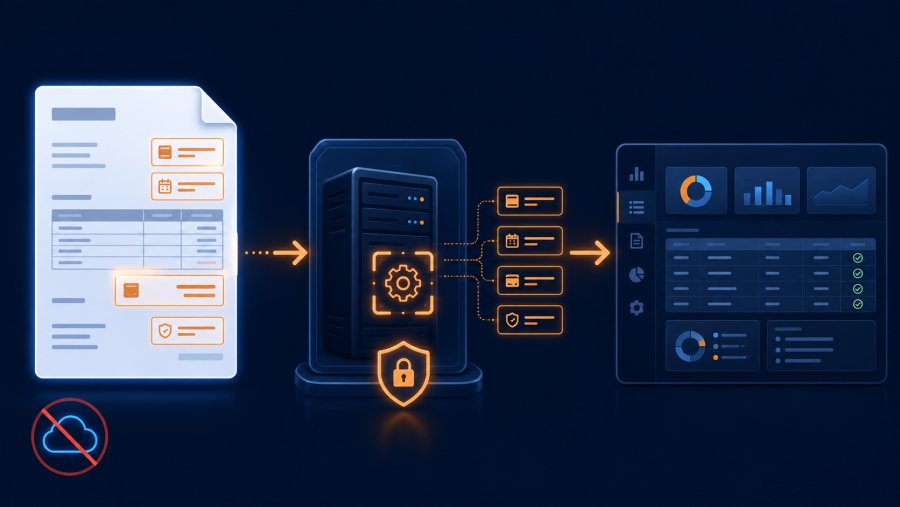
- Many invoices already contain structured or selectable data, so cloud OCR is not always needed
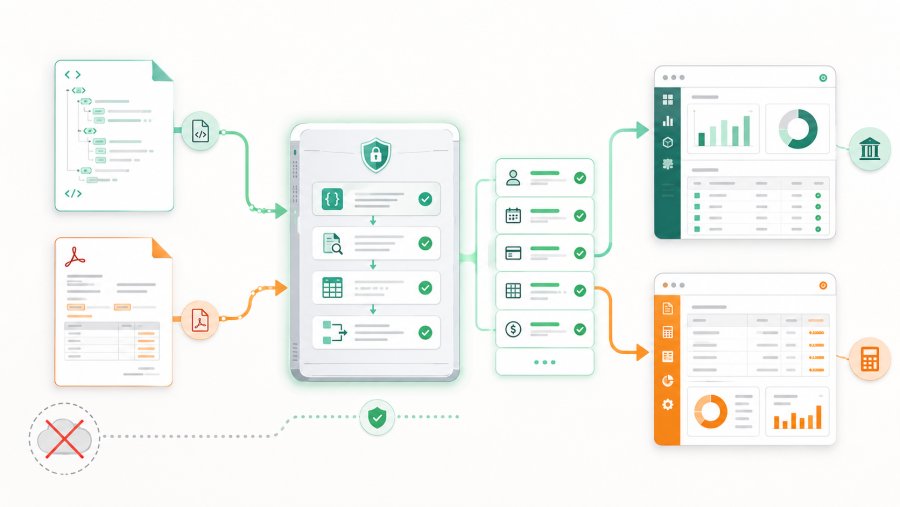
- To extract invoice data without cloud OCR, you must first separate XML invoices, text-based PDFs and scanned PDFs
- A local workflow gives you more control over sensitive files, access rules, processing logs and exceptions
- The right process includes intake, file classification, parsing, validation, normalisation and human review
Extract invoice data without cloud OCR is a practical goal when the invoice file already contains readable information. Many e-invoices are XML files, and many PDFs generated by accounting systems contain selectable text. The key difference is simple: reading data that already exists is not the same as sending invoice images to an external OCR platform for interpretation.
This does not mean OCR is useless. OCR is useful when you receive scans, photos or image-only PDFs. However, many businesses use cloud OCR even when the document does not require it. That can add cost, extra steps and avoidable exposure for sensitive supplier and payment data.
This guide explains how to design a local invoice extraction workflow. It covers which file types to handle, which fields to extract, how to validate data and where to add human review.
When it makes sense to extract invoice data without cloud OCR
Before choosing a tool, identify the type of invoice you receive. Not all invoice files need the same method. Some files are structured data. Others are visual documents. Some are only images.
The main cases are:
- XML e-invoice, with structured fields such as supplier, buyer, invoice number, date, taxable amount, tax and total
- Text-based PDF, generated by accounting software and containing selectable text
- Scanned PDF, created from a scan or photo, so it behaves like an image
In the first case, OCR is not needed. You should parse the XML file. In the second case, you can often extract text from the PDF locally. In the third case, OCR may be required because there is no text layer to read.
For PDF files, it helps to understand the format itself. PDF is defined by the ISO 32000 standard, and the PDF Association provides information about the PDF ISO standard.
Step 1: create a controlled invoice intake folder
A reliable workflow starts with one simple rule: every invoice enters through the same controlled point. This can be a local folder, a shared network folder, a mailbox processed by a script or an area inside your ERP.
Avoid letting every team member save invoices wherever they prefer. If documents arrive in different places, the process becomes fragile. Files can be missed, duplicated or processed twice.
A basic folder structure can look like this:
/invoices
  /incoming
  /processed
  /errors
  /original_archive
  /logs
The incoming folder contains files waiting to be read. The processed folder contains files handled successfully. The errors folder holds documents that need review. The archive keeps the original files.
This structure looks simple, but it removes many doubts. It also helps you prove which document was processed, when it was processed and what happened to it.
Step 2: classify the file before extracting data
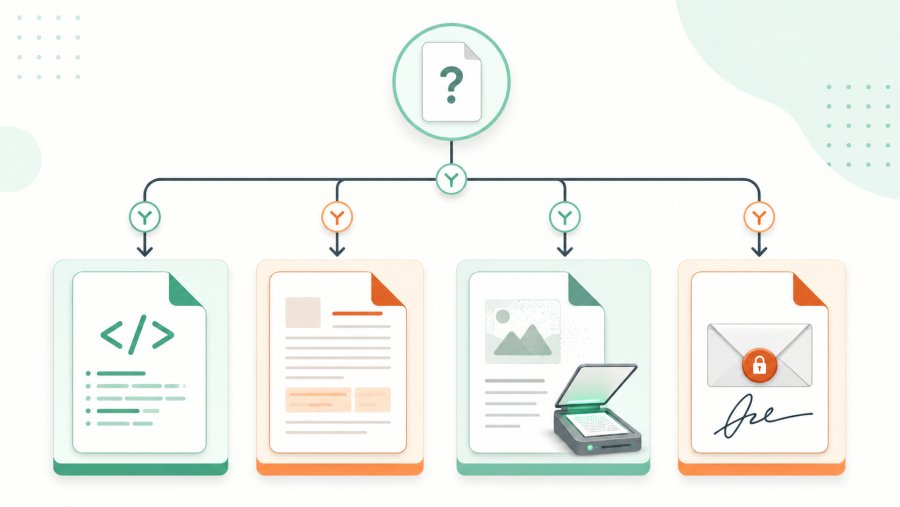
To extract invoice data without cloud OCR, classify the file before applying extraction logic. If you treat XML as a PDF, you lose the benefit of structured data. If you treat a scan as a text-based PDF, you will get poor results.
A practical rule is:
- If the file is XML, use an XML parser
- If the file is a PDF with selectable text, use local text extraction
- If the file is an image-only PDF, send it to review or to a local OCR flow
- If the file is a signed container, extract the signed content first
In a real process, an initial classification record may look like this:
{
  "file": "invoice_123.xml",
  "type": "xml_e_invoice",
  "action": "parse_xml",
  "cloud_ocr": false
}
Or like this:
{
  "file": "supplier_invoice.pdf",
  "type": "text_pdf",
  "action": "local_text_extraction",
  "cloud_ocr": false
}
This step prevents the wrong tool from being applied to the wrong file. It also separates clean automation cases from documents that need manual review.
Step 3: extract data from XML invoices
An XML invoice is the cleanest case. The file contains structured fields, so the system can read the relevant nodes directly. You do not need to interpret a page layout. You need to find the right data.
The most useful fields in an accounting workflow are often:
- Supplier tax ID or VAT number
- Supplier legal name
- Invoice number
- Invoice date
- Net amount
- Tax amount
- Total amount
- Payment terms, where present
- Bank account, where present
- Invoice line items
Python includes a standard module for XML processing. The official documentation describes xml.etree.ElementTree as an API for parsing and creating XML data: Python ElementTree.
A simplified example:
import xml.etree.ElementTree as ET

xml_file = "invoice.xml"
tree = ET.parse(xml_file)
root = tree.getroot()

def find_text(path):
    element = root.find(path)
    if element is None:
        return None
    return element.text

invoice_number = find_text(".//InvoiceNumber")
invoice_date = find_text(".//InvoiceDate")
total_amount = find_text(".//TotalAmount")

print({
    "invoice_number": invoice_number,
    "invoice_date": invoice_date,
    "total_amount": total_amount
})
In production, you must handle namespaces, format versions and missing fields. However, the principle stays the same: if the data is already inside the file, you do not need OCR.
Step 4: extract text from software-generated PDFs
Many suppliers send PDFs created by accounting software. These files often contain selectable text. In that case, you can read the text locally and then search for fields such as number, date and total.
The result depends on how the PDF was generated. Some files contain clean, ordered text. Others split columns and rows in ways that are harder to parse. Start with simple rules and add supplier-specific exceptions only when needed.
A text output may look like this:
INVOICE
Number: 2026-145
Date: 12/06/2026
Supplier: Smith Ltd
Net amount: 1,200.00 GBP
Tax: 240.00 GBP
Total amount: 1,440.00 GBP
You can then apply extraction rules:
import re

text = """
INVOICE
Number: 2026-145
Date: 12/06/2026
Supplier: Smith Ltd
Net amount: 1,200.00 GBP
Tax: 240.00 GBP
Total amount: 1,440.00 GBP
"""

def extract(pattern):
    result = re.search(pattern, text)
    if not result:
        return None
    return result.group(1).strip()

data = {
    "invoice_number": extract(r"Number:\s*(.+)"),
    "invoice_date": extract(r"Date:\s*(.+)"),
    "total_amount": extract(r"Total amount:\s*(.+)")
}

print(data)
This works well when the layout is stable. If each supplier uses a different format, create supplier-specific rules or use a more flexible local extraction layer.
Step 5: normalise amounts, dates and codes
After extraction, the data is not ready for accounting yet. You need to normalise it. This means turning values into consistent formats that your systems can compare.
For example, a date may arrive as 12/06/2026, 2026-06-12 or 12 June 2026. An amount may include commas, spaces, currency symbols or different decimal separators.
A simple amount normalisation example:
from decimal import Decimal

def normalize_amount(value):
    cleaned = value.replace("GBP", "").replace("£", "").strip()
    cleaned = cleaned.replace(",", "")
    return Decimal(cleaned)

print(normalize_amount("1,440.00 GBP"))
A simple date normalisation example:
from datetime import datetime

def normalize_date(value):
    formats = ["%d/%m/%Y", "%Y-%m-%d", "%d %B %Y"]

    for date_format in formats:
        try:
            return datetime.strptime(value, date_format).date().isoformat()
        except ValueError:
            continue

    raise ValueError(f"Invalid date: {value}")

print(normalize_date("12/06/2026"))
Normalisation reduces errors in later steps. It also makes it easier to match invoices with purchase orders, delivery notes and payments.
Step 6: validate data before posting it
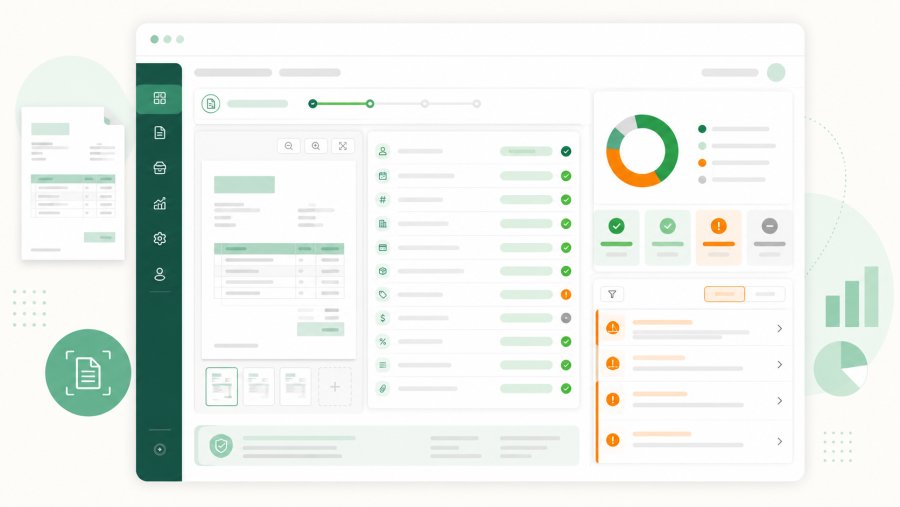
To extract invoice data without cloud OCR in a useful way, you need more than field capture. You also need to check whether those fields make sense. An invoice with a missing total or unknown supplier should not enter accounting automatically.
Define minimum checks:
- Invoice number is present
- Invoice date is present and valid
- Supplier is recognised
- Total amount is present
- Net amount, tax and total are consistent
- Duplicate invoice is not already present
- Purchase order or contract is linked, when required
A simple validation function:
def validate_invoice(data):
    errors = []

    if not data.get("invoice_number"):
        errors.append("missing invoice_number")

    if not data.get("invoice_date"):
        errors.append("missing invoice_date")

    if not data.get("total_amount"):
        errors.append("missing total_amount")

    if not data.get("supplier_tax_id"):
        errors.append("missing supplier_tax_id")

    return errors
If validation returns errors, the invoice should move to review. If it passes, it can move toward the ERP, accounting system or a controlled import file.
Step 7: prepare an output for accounting or ERP
Once the data is validated, it needs to enter the right system. That may be an ERP, accounting software, a database or a CSV file for controlled manual import.
A simple JSON output may look like this:
{
  "supplier": {
    "legal_name": "Smith Ltd",
    "tax_id": "GB123456789"
  },
  "invoice": {
    "number": "2026-145",
    "date": "2026-06-12",
    "net_amount": "1200.00",
    "tax_amount": "240.00",
    "total_amount": "1440.00"
  },
  "status": "validated"
}
Or, for a CSV import:
supplier_tax_id,invoice_number,invoice_date,net_amount,tax_amount,total_amount,status
GB123456789,2026-145,2026-06-12,1200.00,240.00,1440.00,validated
The goal is to avoid copy and paste. The admin team should review exceptions, not retype data that already exists in documents.
Step 8: protect files, access and processing logs
Invoices contain business and personal data. Therefore, the workflow must manage access, storage, logs and retention. This remains true even when you do not use cloud OCR.
A local workflow is not automatically secure. It gives you more control, but it still needs rules. You should know who can open files, where they are stored, how long they remain available and which errors are logged.
The European Commission provides an official overview of data protection rules, which is useful context for European businesses.
A minimum processing log may include:
{
  "file": "invoice_2026_145.xml",
  "received_at": "2026-06-12T09:30:00",
  "type": "xml",
  "status": "validated",
  "errors": [],
  "operator": "system",
  "cloud_ocr": false
}
Common mistakes to avoid
The first mistake is using OCR for everything. If the invoice is XML, the data is already available. If the PDF contains text, you can often read it without optical recognition.
The second mistake is trusting extracted fields without validation. A number may be read correctly but still be in the wrong format. A total may exist but fail to match net amount and tax.
The third mistake is ignoring edge cases. Protected files, attachments, foreign invoices, credit notes and duplicates all need rules. Otherwise, they create unclear manual work.
The fourth mistake is failing to log the document path. If you do not know when a file arrived, how it was read and why it was rejected, the process remains fragile.
A good system should not only extract data. It should also say when automatic processing is not safe.
Frequently asked questions
Can invoice data be extracted without OCR?
Yes, when the invoice is XML or a text-based PDF. In these cases, the data is already present in the file and can be read with parsers or local text extraction tools. OCR is mainly needed for scans and images.
How do I extract invoice data without cloud OCR?
Classify the file format first, then read XML or PDF text locally. After extraction, normalise the fields, validate the data and save logs, originals and errors.
Do e-invoices need OCR?
No, not when the e-invoice is a structured XML file. The system should read the XML fields directly instead of recognising text from an image.
When is OCR really needed for invoices?
OCR is needed when you receive a scan, photo or image-only PDF. In those cases, there is no text or structured data layer to read directly.
Is avoiding cloud OCR more secure?
It can reduce the need to send sensitive documents to external services. However, security also depends on access rules, storage, logs, backups and internal procedures.