
- WooCommerce stock not updated means that product quantities in your store do not match the real availability in your warehouse, ERP, POS, or supplier feed
- The problem can come from order status rules, cache, failed scheduled actions, plugin conflicts, imports, or synchronization errors
- Start with a controlled test order, then check settings, logs, scheduled actions, and integrations before changing code
- For small and medium-sized businesses, the priority is not only fixing the bug, but also creating a repeatable stock control process
WooCommerce stock not updated. When you see WooCommerce stock not updated, it usually means one thing: your online store is showing stock data that no longer reflects reality. For a small or medium-sized business, this is not a minor technical detail. It can create overselling, cancelled orders, customer complaints, manual rework, and unreliable purchasing decisions.
This guide explains what the issue really means, how WooCommerce normally manages stock, where the process can break, and how to diagnose the problem step by step. The goal is practical: help you understand what to check, what to document, and when to involve a developer or your hosting provider.
What “WooCommerce stock not updated” really means
The phrase WooCommerce stock not updated can describe several different situations. In some cases, the product quantity does not decrease after an order. In others, the quantity decreases at first, then returns to the previous value. Sometimes the back office shows one value while the front end, a marketplace, or an ERP shows another.
Before you fix anything, define the exact symptom. This avoids random plugin changes and helps you speak clearly with your developer, hosting support, or software provider.
Common symptoms
- Orders are paid, but product stock does not decrease
- Cancelled or refunded orders do not restore stock correctly
- Variable products show the wrong availability for one or more variations
- The product page shows “in stock”, while the admin area shows zero quantity
- Stock updates from an ERP, POS, or CSV import overwrite correct WooCommerce values
- Marketplace stock differs from WooCommerce stock after synchronization
WooCommerce provides official product and inventory documentation, including product data, stock status, and inventory options. You can use the WooCommerce product guide as the primary reference when checking your store configuration.
How WooCommerce stock normally works
WooCommerce stock management starts with two levels of settings: global inventory settings and product-level inventory settings. Both must be correct. If one level is disabled or misconfigured, the store may behave differently from what you expect.
At product level, WooCommerce can manage stock for simple products and individual variations. For example, a T-shirt may have one global stock value, or each size and color can have its own quantity. For a business that sells physical goods, variation-level stock is often essential because “blue, size M” and “black, size L” are different saleable items.
Order status matters
Stock changes usually depend on the order workflow. A store may reduce stock when an order is created, paid, moved to processing, or completed, depending on settings and payment behavior. Therefore, a stock problem is often connected to order status transitions rather than the product page itself.
For example, imagine this order flow:
- A customer places an order for 3 units
- The payment gateway keeps the order pending while it waits for confirmation
- The gateway later marks the order as processing
- WooCommerce reduces the product stock
- An ERP connector then sends an older stock value and overwrites the update
In this scenario, the first stock change may work correctly, but an integration creates the final mismatch. That is why you should avoid assuming that WooCommerce itself is always the source of the issue.
Example: expected stock movement
Initial stock: 10 Customer order: 2 units Expected stock after order confirmation: 8 Expected stock after cancellation with stock restoration: 10
If your store does not follow this simple logic, you need to identify where the flow breaks: order creation, payment confirmation, stock reduction, cancellation, refund, import, or synchronization.
Step 1: Confirm the exact stock problem
Start with a controlled test. Do not begin by disabling plugins or editing code. A structured test gives you evidence and reduces the risk of creating new problems.
Create a test product that is not visible to normal customers. Set a clear stock quantity, such as 10 units, and place one test order using a safe payment method. Then check whether the stock changes as expected.
Test checklist
- Create a simple test product with stock management enabled
- Set stock quantity to 10
- Place an order for 2 units
- Check the order status immediately after checkout
- Check the product stock in the admin area
- Change the order status manually to processing or completed
- Cancel the order and check whether stock is restored
You can use a simple internal note like this:
Test product: Stock Test Product Initial quantity: 10 Order quantity: 2 Order status after checkout: Processing Expected stock: 8 Actual stock: 8 Result: Stock reduction works for simple product orders
If the test works for a simple product but not for a real product, the issue may sit inside product configuration, variations, SKU mapping, or an external stock feed. If the test fails even for a simple product, the issue is probably more general.
Step 2: Check global inventory settings
The next step is to verify whether WooCommerce inventory management is active. If global inventory management is disabled, product-level stock settings may not behave as expected.
In the WordPress admin area, go to WooCommerce settings and review the inventory options. The exact admin path can vary by WooCommerce version and interface, but the official WooCommerce settings documentation remains the safest reference. Use the WooCommerce settings guide to verify the current settings structure.
Settings to inspect
- Stock management is enabled globally
- Hold stock time is suitable for your checkout process
- Low stock and out-of-stock thresholds match your operational needs
- Out-of-stock visibility is configured intentionally
- Notification recipients are correct
The “hold stock” setting deserves special attention. If customers start checkout but do not complete payment, WooCommerce may reserve stock for a limited time. This can confuse teams that compare stock too early or do not understand pending orders.
Step 3: Check product and variation settings
If global settings look correct, inspect the affected products. For a simple product, confirm that stock management is enabled and that the quantity field contains the expected value. For variable products, check every relevant variation.
A common mistake is enabling stock at the parent product level while the real stock is supposed to sit on individual variations. Another common issue is reusing the same SKU across multiple variations or channels. SKU duplication can break reporting and synchronization, especially when external systems rely on SKUs as unique identifiers.
What to verify on each product
- Product type is correct
- Manage stock is enabled where needed
- Stock quantity is present and numeric
- Stock status matches the quantity
- Backorders are enabled only when intentionally allowed
- Each variation has the correct SKU and quantity
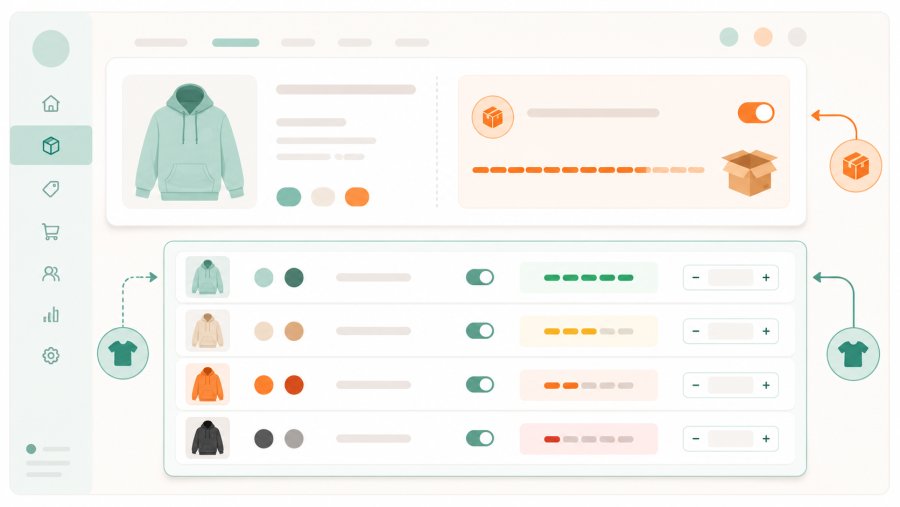
For example, a variable product should not be checked only at parent level:
Product: Business Polo Shirt Parent stock: Not managed Variation: Navy / M / SKU POLO-NAVY-M / Stock 12 Variation: Navy / L / SKU POLO-NAVY-L / Stock 7 Variation: Black / M / SKU POLO-BLACK-M / Stock 0
If customers can still buy “Black / M” even though its stock is zero, check backorder rules, cache, and variation availability data.
Step 4: Review scheduled actions and background tasks
WooCommerce and many WooCommerce extensions use background tasks to process operations. These tasks can update subscriptions, run imports, sync stock, send emails, or process webhooks. If the task runner fails, stock synchronization can become delayed or incomplete.
Many WooCommerce stores use Action Scheduler, a background processing library used by WooCommerce and extensions. Its official project site is available here: Action Scheduler.
In your WordPress admin area, check scheduled actions for failed, pending, or repeatedly stuck tasks. The location may vary, but it is often available under WooCommerce status, tools, or scheduled actions depending on your setup.
What to look for
- Failed stock synchronization tasks
- Large queues of pending actions
- Repeated errors from ERP, POS, marketplace, or import plugins
- Webhook delivery failures
- Tasks that run for too long and time out
A failed action may show the plugin or integration responsible for the update. This is useful because it turns a vague issue, WooCommerce stock not updated, into a specific technical trail.
WordPress scheduled tasks depend on WP-Cron behavior, which has its own limitations and operational requirements. The WordPress cron guide explains how scheduled events work in WordPress.
Step 5: Check cache, object cache, and frontend mismatches
Sometimes WooCommerce updates stock correctly in the database, but customers see an old value on the product page. In this case, the problem is not stock management itself. It is cache.
Caching can happen at several levels: plugin cache, hosting cache, CDN cache, object cache, browser cache, and theme fragments. Product pages, product archives, and variation data can show stale information if the cache rules are too aggressive.
Practical cache checks
- Compare stock in the admin product editor with the product page
- Open the product page in a private browser window
- Temporarily purge cache from your caching plugin
- Purge hosting cache and CDN cache if active
- Test a product with cache disabled for logged-in administrators
- Ask your host whether WooCommerce cart and checkout pages are excluded from full-page cache
If the admin area shows the correct stock but the frontend does not, document screenshots from both views and include the cache layers involved. This helps your hosting provider or developer reproduce the mismatch.
Step 6: Inspect integrations, imports, and stock ownership
Many businesses do not manage stock only inside WooCommerce. They use an ERP, warehouse management system, POS, supplier feed, marketplace connector, or CSV import. In that environment, you must define which system owns stock.
If no one defines ownership, each system may overwrite the others. WooCommerce may reduce stock after an order, then an external import may send yesterday’s quantity and restore the old value. This creates the impression that WooCommerce stock not updated, while the real problem is a conflicting synchronization rule.
Define the stock source of truth
- WooCommerce owns stock and sends updates to other systems
- ERP owns stock and WooCommerce receives updates
- POS owns retail stock and WooCommerce owns online stock
- Warehouse software owns stock across all channels
There is no universal right answer. The right architecture depends on your operations. However, there must be one clear source of truth for each SKU.
Use a stock ownership table like this:
SKU: BAG-LEATHER-BROWN Stock owner: ERP WooCommerce role: Sales channel Update direction: ERP to WooCommerce Update frequency: Every 15 minutes Conflict rule: ERP value overrides WooCommerce value Responsible person: Operations manager
For stores that use the WooCommerce REST API, the official API documentation is the safest starting point for technical verification: WooCommerce REST API[/link>.
Step 7: Check logs and create an evidence pack
When the problem continues, gather evidence before asking for help. A clear evidence pack can reduce diagnosis time and avoid vague support replies.
Check WooCommerce logs, payment gateway logs, integration logs, import history, and hosting error logs. Look for timestamps that match the moment when stock changed, failed to change, or changed back.
Evidence to collect
- Affected product name and SKU
- Product type and variation details
- Order number and order status history
- Expected stock and actual stock
- Time when the mismatch appeared
- Recent imports or synchronization jobs
- Relevant WooCommerce logs
- List of active inventory, ERP, POS, marketplace, and cache plugins
You can also ask a developer to check the database values for a product. This should be done carefully and preferably on a staging copy or with read-only access.
SELECT post_id, meta_key, meta_value FROM wp_postmeta WHERE post_id = 123 AND meta_key IN ('_stock', '_stock_status', '_manage_stock', '_backorders');
Step 8: Fix the root cause, not only the visible number
Once you understand where the flow breaks, choose the right fix. Do not simply correct stock quantities manually and consider the job finished. Manual correction may be necessary, but it does not prevent the issue from returning.
Typical fixes
- Enable stock management globally and at product level
- Correct variation-level stock configuration
- Remove duplicate SKUs
- Adjust backorder settings
- Exclude sensitive WooCommerce pages from cache
- Fix failed scheduled actions
- Configure a real server cron for reliable background processing
- Repair ERP, POS, marketplace, or supplier feed mappings
- Change synchronization direction so only one system owns stock
- Update or replace plugins that fail during stock changes
After applying a fix, repeat the same controlled test from Step 1. This confirms that the change worked and gives you a reliable before-and-after record.
Operational checklist for small and medium-sized businesses
A stable stock process is not only technical. It also depends on roles, routines, and accountability. Small and medium-sized businesses often suffer because everyone can see the problem, but no one owns the process.
Assign one person or team to stock accuracy. Then create a recurring check that compares WooCommerce stock with the operational source of truth. The frequency depends on order volume, but the habit matters more than the tool.
Weekly stock control checklist
- Review products with zero stock but recent sales
- Check failed scheduled actions
- Review recent imports and synchronization reports
- Compare a sample of SKUs between WooCommerce and the source system
- Check cancelled and refunded orders for correct stock restoration
- Confirm that new products and variations have unique SKUs
- Document anomalies and assign follow-up actions
For higher-volume stores, run these checks daily. Moreover, consider alerts for negative stock, repeated failed actions, or large stock changes. These alerts help you catch problems before customers do.
Frequently asked questions
Why is WooCommerce stock not updated after an order?
The most common causes are disabled stock management, unexpected order status behavior, payment gateway delays, failed scheduled actions, cache, or an integration overwriting the quantity. Start with a controlled test order, then compare the product stock before and after each order status change.
Does WooCommerce reduce stock when an order is pending?
It depends on your store settings, payment flow, and order status behavior. Pending orders can also interact with the hold stock setting, so you should test the exact checkout flow used by your customers.
Can cache make WooCommerce stock look wrong?
Yes. The database may contain the correct stock, while the product page shows an older cached version. Always compare the admin product editor, the frontend product page, and a private browser session before assuming stock management has failed.
Why do product variations show the wrong stock?
Variation stock can be wrong when stock is managed at the wrong level, SKUs are duplicated, backorders are enabled unintentionally, or an import updates the parent product instead of each variation. Check each variation individually, not only the parent product.
How do I prevent WooCommerce stock problems from returning?
Define one stock source of truth, keep SKUs unique, monitor failed scheduled actions, and document your order and refund workflow. Then create a regular stock control checklist so your team catches small discrepancies before they affect customers.